
If you're wondering how to export bookmarks from Chrome, you're probably about to migrate to a new browser, back up your links before a system reinstall, or move to a dedicated bookmark manager. Whatever your reason, Chrome makes the export process surprisingly quick — but there are important details most guides skip, from what's actually inside the exported file to how to handle mobile Chrome (where export isn't even directly possible).
This guide walks through every method — desktop, mobile, and the workarounds you'll need — plus what to do with the exported file once you have it.
Export Bookmarks from Chrome (Desktop) — the 30-Second Method
For Chrome on desktop (Windows, macOS, Linux), exporting bookmarks takes exactly four clicks. Here's the process:
Step 1 — Open the Chrome menu. Click the three vertical dots in the top-right corner of your Chrome window.
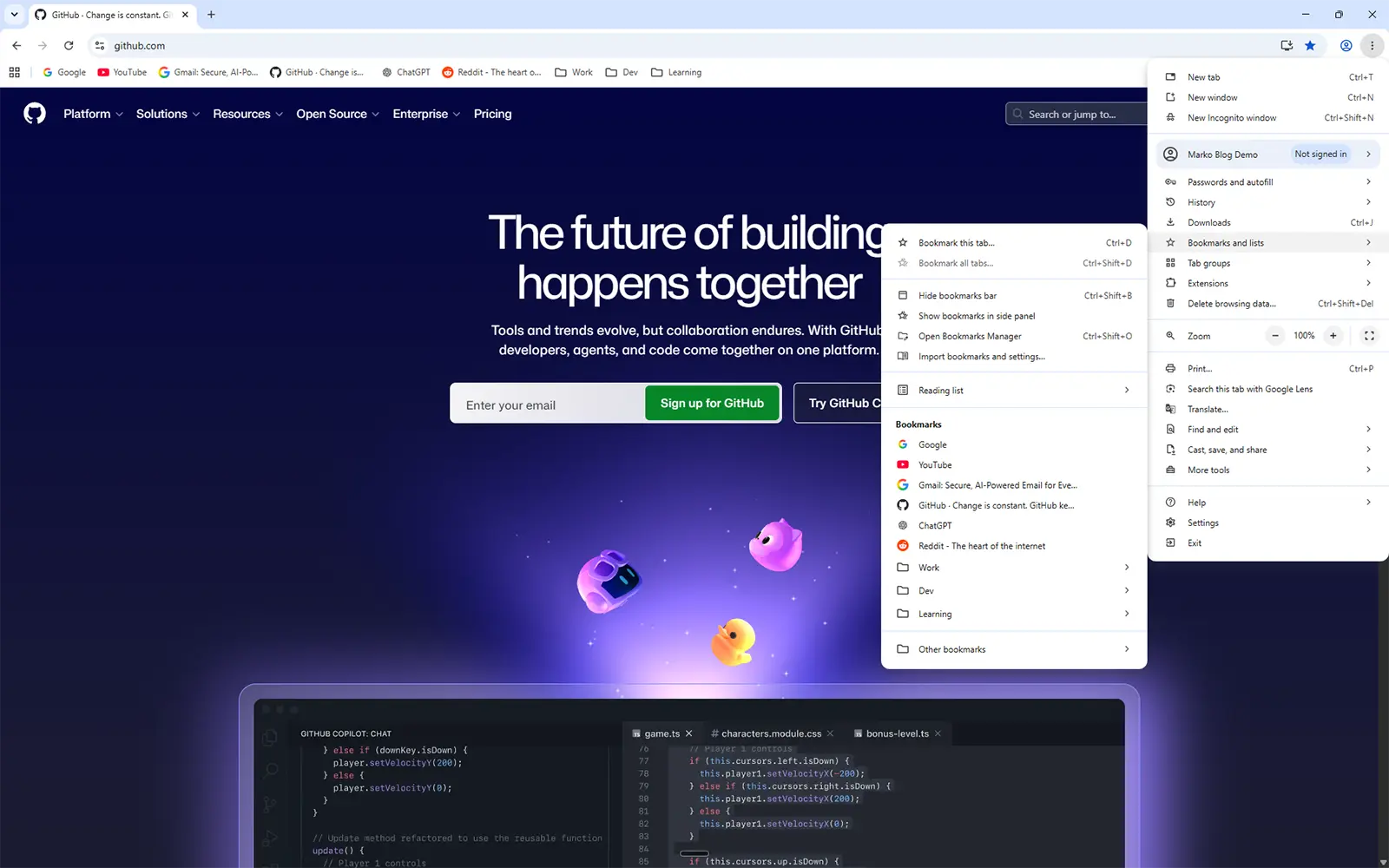
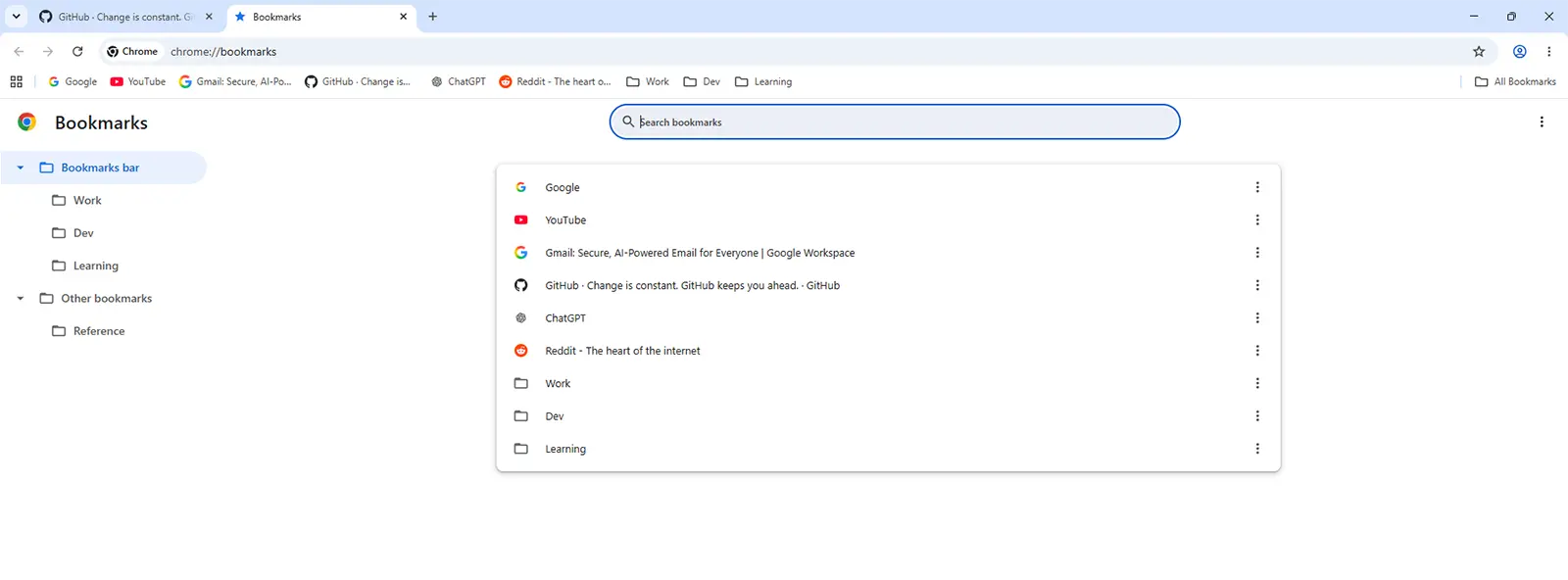
Step 2 — Navigate to the Bookmark Manager. Hover over Bookmarks and lists (or Bookmarks in older versions), then click Bookmark manager. You can also press Ctrl+Shift+O on Windows/Linux or Cmd+Option+B on macOS to open it directly.
Step 3 — Open the export menu. Once inside the Bookmark Manager, click the three vertical dots at the top-right of that page (not the browser menu — the Bookmark Manager's own menu). A dropdown appears with several options.
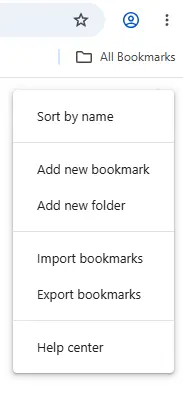
Step 4 — Export. Click Export bookmarks. A file save dialog opens. Choose a location, give it a memorable name (something like chrome-bookmarks-2026-07.html), and save.
That's it. You now have an HTML file containing your entire Chrome bookmark library.
What's Actually Inside the Exported File
Most guides stop at "Save the file." But understanding what's in that file matters — it explains why some things transfer perfectly to other tools and why some things get lost along the way.
Open your exported HTML file in a text editor or a browser and you'll see something that looks strange but is actually a standard format called Netscape Bookmark File Format, dating back to 1994. Every browser and bookmark manager on the planet supports it — that's what makes it universal.
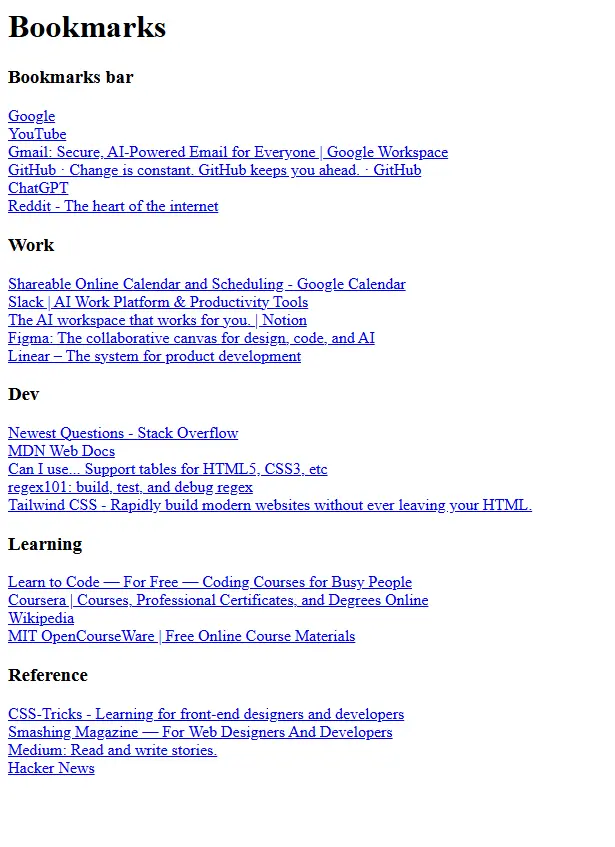
What the file contains:
- Every bookmark URL and title
- Your folder structure, exactly as you organized it
- The date each bookmark was added (as a Unix timestamp)
- Any custom folders you created (Bookmarks Bar, Other Bookmarks, Mobile Bookmarks)
What the file does NOT contain:
- Favicons (the small site icons — these are typically re-fetched by the destination tool)
- Your reading history or browsing patterns
- Extension-specific data (like Pocket saves or Instapaper articles you synced through extensions)
- Passwords, autofill data, or any account information
This means when you import into another tool, your bookmarks arrive intact — but visual elements like favicons will need a few seconds to reload. Nothing to worry about, just a small delay.
Export Bookmarks from Chrome Mobile (Android & iOS)
Here's the frustrating truth: Chrome Mobile does not have a direct export function. If you've been searching for how to export bookmarks from Chrome on your phone, you're not missing an option — Google simply didn't build one.
Fortunately, there are two reliable workarounds.
Method 1 — Sync then export from desktop. If you're signed into Chrome with the same Google account on both mobile and a desktop computer, your mobile bookmarks are already synced automatically. Open Chrome on any desktop, follow the export steps above, and your mobile bookmarks will be included in the export file (usually inside a folder called "Mobile Bookmarks").
Method 2 — Access via Google account. If you don't have easy access to a desktop, go to chrome://bookmarks in Chrome desktop after signing in to your Google account, or use a browser like Firefox with a Chrome sync extension to view the same data. Then export from there.
There's currently no way to export directly from an Android or iOS device without going through desktop Chrome at some point. If that's a dealbreaker for you, this is one of the reasons people migrate to a dedicated bookmark manager that offers native mobile export.
Where to Store Your Exported Bookmarks
You have the file. Now what? A few practices that will save you headaches later:
Don't leave it on your Desktop and forget it. That's the most common mistake. The file gets buried in three months, and when you actually need it (after a crash, before a migration), you spend an hour looking for it.
Version your exports. Every time you export, include the date in the filename: chrome-bookmarks-2026-07-20.html. This makes it obvious which version is the latest and lets you keep a history.
Store in cloud storage. Google Drive, Dropbox, iCloud — anywhere that syncs across devices. Bookmark exports are tiny files (usually under 1 MB, even with thousands of bookmarks), so storage cost is a non-issue.
Export regularly. Once a month is a reasonable rhythm for most people. Once a week if you save a lot of bookmarks. Set a calendar reminder — because you will forget otherwise, and the day you need the backup is the day you'll regret it.
How to Import Your Bookmarks Elsewhere
The universal HTML format means your export works in virtually every browser and bookmark manager. Here's how the process looks in the main destinations.
Import into Firefox: Open Firefox → click the library icon (four vertical lines) → Bookmarks → Manage bookmarks → Import and Backup → Import Bookmarks from HTML → select your file. Done in under 30 seconds.
Import into Microsoft Edge: Edge menu (three dots) → Favorites → Manage favorites → three dots at the top → Import favorites → Import from file → select the HTML file.
Import into Safari (macOS): Safari → File menu → Import From → Bookmarks HTML File → select your file. Safari will create a new folder called "Imported [date]" containing everything.
Import into Brave: Brave uses the same interface as Chrome for this. Follow essentially the same steps as Chrome import: three-dot menu → Bookmarks → Import bookmarks and settings → choose the HTML file option.
Import into a bookmark manager (Raindrop, Marko, Pinboard, etc.): Every serious bookmark manager accepts the standard HTML export. Look for Settings → Import → HTML or a similar path in your tool of choice.
How to Stop Doing This Manually
Exporting bookmarks from Chrome once a month works. But if you're doing it because you want your bookmarks accessible across browsers and devices without manual syncing, there's a better long-term answer: a bookmark manager that lives outside of any single browser.
The core problem with Chrome bookmarks is that they belong to Chrome. Switch to Firefox for a project, or use Edge at work and Chrome at home, and you're stuck in export/import loops. A dedicated bookmark manager stores your library in the cloud, gives you browser extensions for every major browser (so saving is one click regardless of where you are), and provides real search and organization features that browser bookmarks can't match.
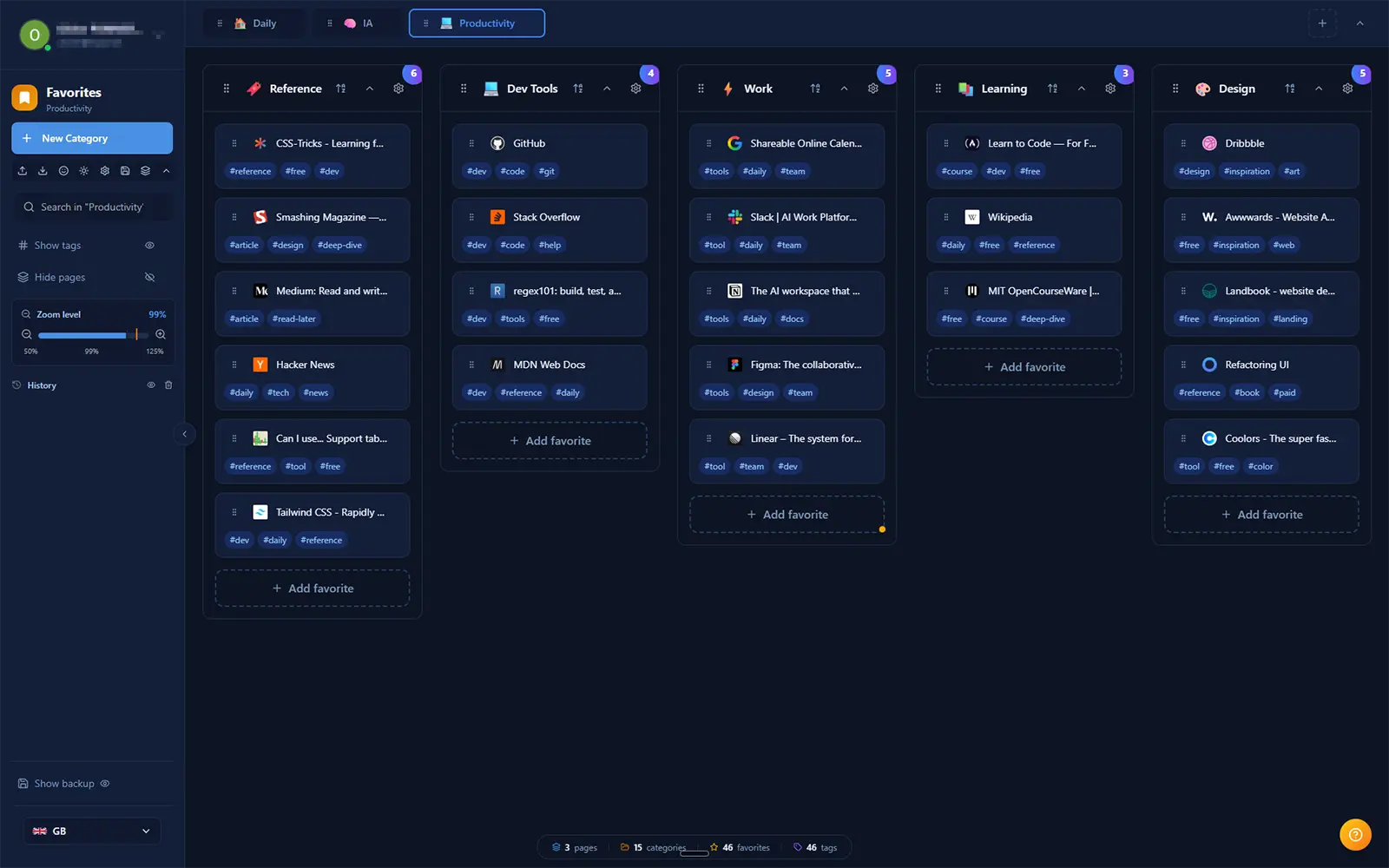
Marko was built exactly for this workflow. You install the Chrome, Firefox, or Edge extension once, and every bookmark you save from any browser lives in the same library, searchable instantly by tag, category, or full-text. When you export from Chrome to migrate into Marko, the import takes seconds and preserves your existing folder structure as categories.
Other options work well too. Raindrop.io is the most established alternative, with a generous free tier. Pinboard is minimalist and has been running stably since 2009. Karakeep is open-source and self-hostable if you want full data ownership. All accept Chrome HTML exports directly.
If you find yourself doing this export dance every few months, moving to a dedicated tool pays for itself quickly — not in money, but in time and frustration saved.
FAQ
Where does Chrome store bookmarks locally on my computer?
Chrome stores bookmarks in a file called Bookmarks (no extension) inside your Chrome user data folder. On Windows, look in %LOCALAPPDATA%\Google\Chrome\User Data\Default\. On macOS, it's in ~/Library/Application Support/Google/Chrome/Default/. On Linux, ~/.config/google-chrome/Default/. This file is Chrome's internal format, not HTML — for a portable file, always use the Export function.
Can I export bookmarks without opening Chrome?
Technically yes — you can manually copy the Bookmarks file from your Chrome user data folder and parse it (it's JSON). But it's much simpler to just open Chrome and use the built-in export. The manual method is only useful if Chrome is broken and won't launch.
Are Chrome bookmarks synced automatically?
Only if you're signed into Chrome with a Google account and sync is enabled for bookmarks. Check chrome://settings/syncSetup to confirm. Even with sync on, it's still worth exporting periodically — sync issues, account problems, or an account suspension can all leave you without access to your synced data.
What's the difference between exporting and syncing? Sync keeps your bookmarks live across Chrome installations tied to the same Google account. Export creates a standalone file that works independently of any account or browser. Sync is convenient day-to-day; export is your safety net when things go wrong or when you leave the Google ecosystem.
Do I need to close Chrome before exporting bookmarks? No. Export works while Chrome is open. In fact, it needs Chrome to be running because the export function lives inside the browser itself.
The bottom line: exporting bookmarks from Chrome is a two-minute task that saves potential hours of pain later. Do it before any major system change, before switching browsers, and on a regular calendar rhythm just as insurance. Store the file in cloud storage with a date in the filename, and you'll always have a way back to your links — no matter what happens to Chrome or your account.
If you find yourself exporting frequently because you're bouncing between browsers, that's a signal that browser bookmarks aren't the right tool for you anymore. A dedicated bookmark manager solves the underlying problem — no more manual dance.